
How to Reset a Forgotten Windows Password Using Hiren’s BootCD PE (with Windows Login Unlocker)
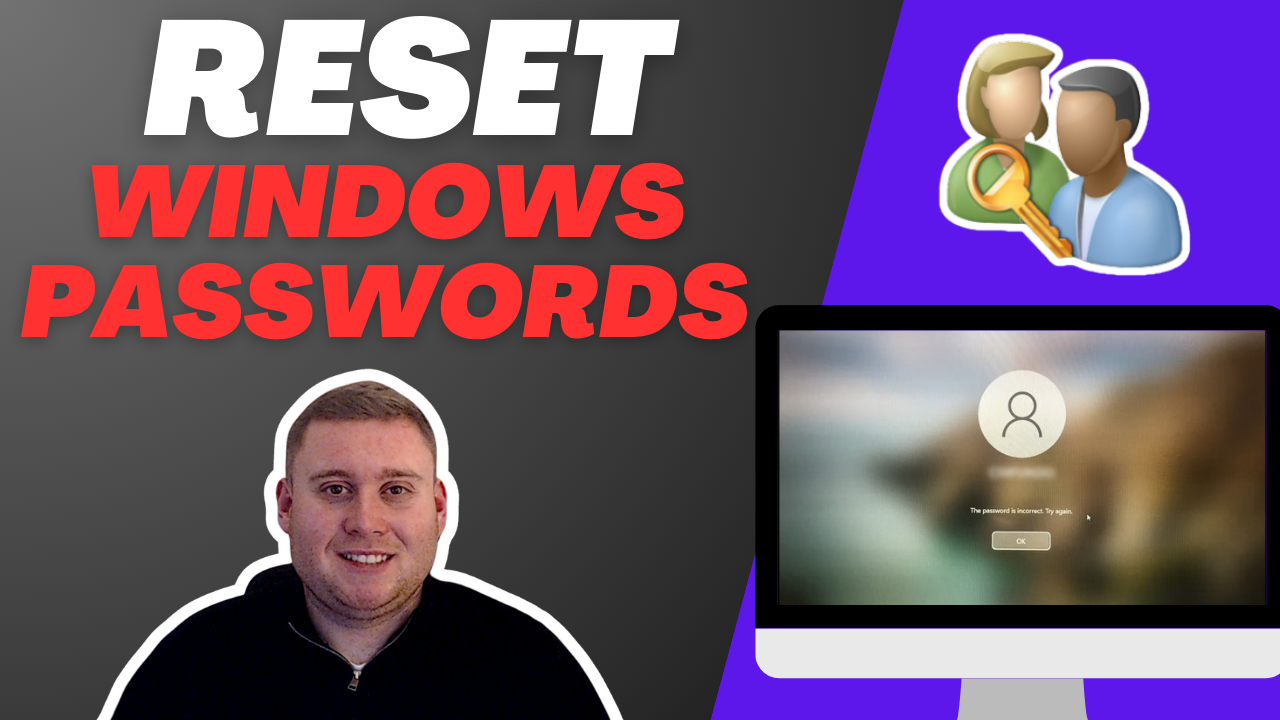
Locked out of your Windows PC? Whether it’s a local or Microsoft account, you can reset the password without reinstalling Windows or losing your data. With the help of Hiren’s BootCD PE and the Windows Login Unlocker tool built in, you’ll be back in your account in no time. Check out the YouTube video below or follow the steps in this article.
Let’s walk through the process step by step.
🛠 What You’ll Need
- A USB flash drive (4GB or more)
- A working computer to prepare the USB
- Hiren’s BootCD PE ISO
- Rufus USB creation tool
💽 Step 1: Download the Tools
- Head to hirensbootcd.org and download the latest Hiren’s BootCD PE ISO file.
- Visit rufus.ie and download Rufus (a portable tool for making bootable USB drives).
🔥 Step 2: Create a Bootable USB with Rufus
- Insert your USB stick into the working computer.
- Open Rufus.
- Under Device, select your USB drive.
- Under Boot selection, click Select and choose the Hiren’s ISO file.
- Click Start to create the bootable USB drive.
🚀 Step 3: Boot Into Hiren’s BootCD PE
- Insert the USB into the locked-out computer.
- Power on the PC and access the boot menu (usually by pressing F12, F9, ESC, or DEL depending on the brand).
- Select your USB drive to boot from.
- Hiren’s will load into a Windows-like desktop environment.
🔓 Step 4: Use Windows Login Unlocker to Reset the Password
- Go to Start > Utilities > Security > Windows Login Unlocker.
- The tool will auto-detect Windows installations and list all user accounts.
- Select the user account you want to reset.
- Click Unlock / Reset Password and confirm.
- The tool will clear the password (or allow you to set a new one) and, in the case of Microsoft accounts, convert the account into a local account.
🌐 Microsoft Accounts? No Problem.
If the account you’re resetting is a Microsoft account (e.g., [email protected]), Windows Login Unlocker will automatically convert it to a local account during the reset process. You’ll be able to log in locally and re-link to Microsoft afterward if you want.
✅ Step 5: Reboot and Log In
- Remove the USB drive.
- Restart the computer.
- Log in with a blank password (or the one you set during the reset).
You’re back in!
🧠 Final Notes
Windows Login Unlocker is a quick, user-friendly way to reset forgotten Windows passwords—perfect for local or Microsoft accounts. Combined with Hiren’s BootCD PE, it gives you a full recovery toolkit right from a USB stick.
⚠️ Important: Use this method only on systems you own or are authorized to access.