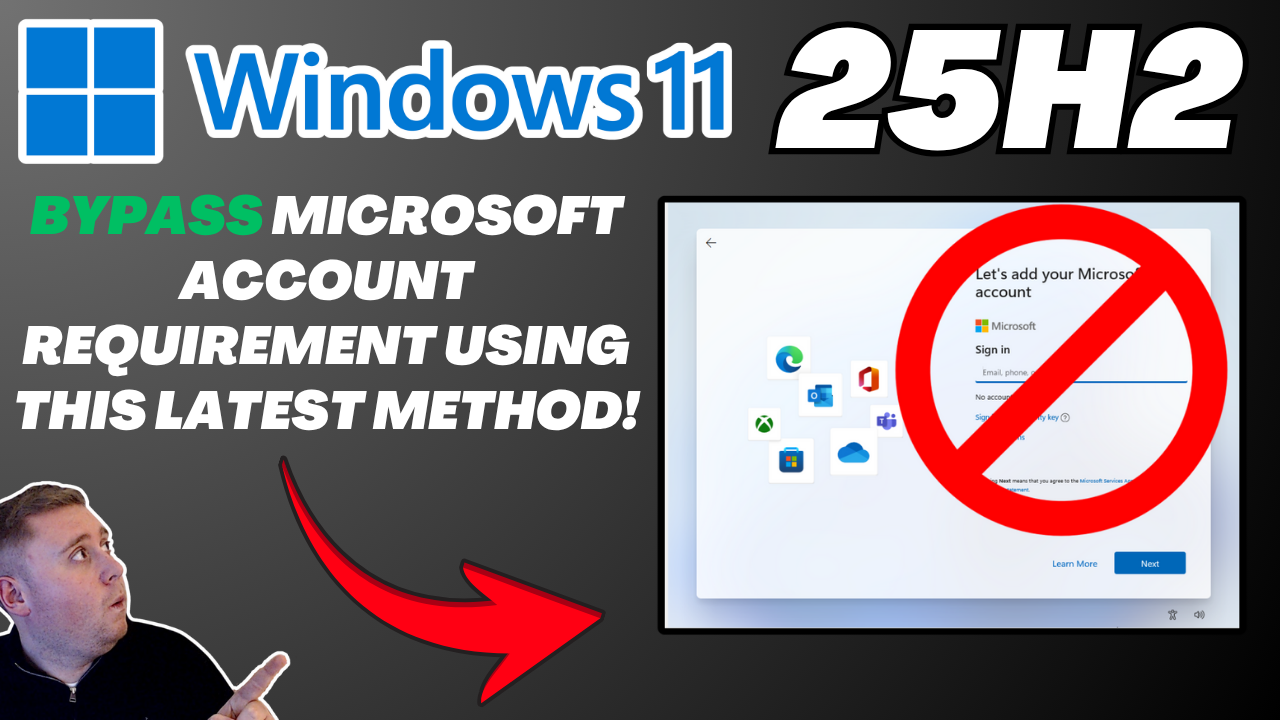

How to Bypass the Microsoft Account Requirement in Windows 11 25H2 (New Methods)
“In this video, I show you the latest tricks to skip Microsoft Account sign-in during Windows 11 installation — even in version 25H2.”
Windows 11 has been increasingly pushing users toward signing in with a Microsoft Account (MSA) during setup (the Out-Of-Box Experience, or OOBE). But many power users and privacy-minded folks prefer to use a local account instead. Fortunately, new bypass methods have been discovered that (at least currently) still let you avoid being forced into an MSA sign-in.
Below is a write-up that mirrors the content from the video, but also adds context, caveats, and step-by-step instructions.
Why people want to skip using a Microsoft Account
Before we dive into the tricks, here are a few reasons many users prefer local accounts over MSAs:
- Privacy / control: Less tethering to Microsoft’s ecosphere (OneDrive, telemetry, etc.)
- Simplicity: A local user account is purely stored on your machine
- Offline / isolated systems: Some devices never need (or should never have) network connectivity
- Avoiding dependency: If Microsoft’s services are down or changed, a pure local setup can be more reliable
That said — Microsoft is tightening the screws. In recent Insider Preview builds, they have removed or disabled several known bypass methods.
So these methods might stop working in future builds. Use them with caution, especially on production machines.
New Bypass Methods in Windows 11 25H2
Here are the methods featured in your video (and known in the community) as of now. I’ll also mention which ones are more stable or risky.
Old Method A (no longer working): start ms-cxh:localonly command
This is the central new trick:
- During OOBE (the setup experience), when you’re asked to sign in with a Microsoft Account, press Shift + F10 to open a Command Prompt.
- In the command prompt, type:
start ms-cxh:localonly - This triggers a hidden “local account creation” screen, letting you skip the MSA requirement.
Because this doesn’t require a full reboot, it can be faster and smoother than some older workarounds. Many users report success with it in Windows 11 24H2 and early 25H2 builds.
However, Microsoft appears to be disabling or blocking such commands in newer preview builds, so its longevity is uncertain. (Windows Central)
New Method B: Registry hack (for bypass of “network requirement”)
If the direct command above fails, another route is to modify the registry during setup:
- At OOBE, press Shift + F10 to bring up the command prompt.
- Run:
reg add HKLM\SOFTWARE\Microsoft\Windows\CurrentVersion\OOBE /v BypassNRO /t REG_DWORD /d 1 /f - Then reboot:
shutdown /r /t 0 - After reboot, the network connection screen may show an “I don’t have Internet” option, allowing you to continue offline and set up a local account.
This is essentially a resurrection of older “bypass” methods, patched in many builds, but sometimes still viable in certain Insider versions. (BleepingComputer)
Caveats & Warnings
- Stability / completeness: Bypassing parts of OOBE might skip critical setup steps, potentially leaving your installation in a suboptimal state. Microsoft claims that some bypassed paths can lead to incomplete configurations.
- Support / warranty: If you run into issues, official support channels may not assist a system set up via hacks
- Use cases: These methods are best suited for personal, experimental, or controlled installations—not for enterprise, mission-critical systems
What Happens Next?
Because these bypasses are under siege by Microsoft’s updates, here’s how you can proceed strategically:
- Test first: Try this on a virtual machine or spare PC before risking your main machine.
- Stay on Insider builds cautiously: The bypass might work today, but be disabled tomorrow.
- Watch for new methods: As old methods are blocked, new ones tend to emerge in the community.
- Consider hybrid setups: If fully local is blocked, you can temporarily use an MSA during install, then switch to local afterwards via Settings → Accounts → Sign in with a local account instead.
- Backup & snapshot: Always have recovery options in case something goes wrong.